KeePass Screenshots
Take a look at KeePass in action. These screenshots show the main interface and key features of the password manager.
Main Window
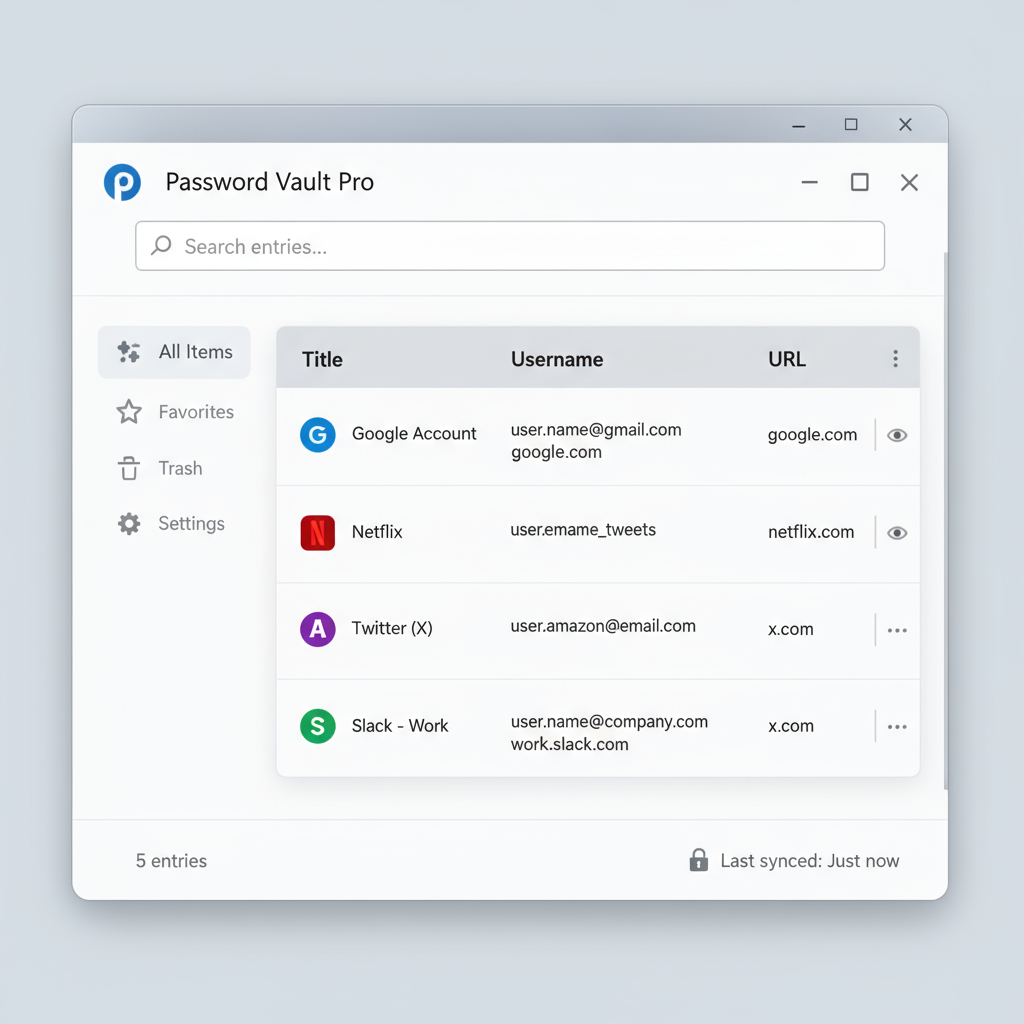
The main KeePass window showing the entry list with groups in the left panel and password entries in the main area. You can see usernames, titles, and URLs at a glance.
Password Generator
Password Generator Interface
The built-in password generator allows you to create strong, random passwords with customizable length and character sets. You can exclude similar characters and ensure passwords meet specific requirements.
Entry Edit Dialog
Entry Edit Dialog
The entry edit dialog where you can add or modify password entries. It includes fields for title, username, password, URL, notes, and custom fields. You can also attach files to entries.
Auto-Type Configuration
Auto-Type Settings
Configure auto-type sequences for automatic login. KeePass can automatically type your username and password into login forms with customizable key sequences.
Search Results
Search Interface
The powerful search functionality helps you quickly find entries by title, username, URL, or any other field. Search results are displayed instantly as you type.
Database Settings
Database Configuration
Database settings allow you to configure encryption algorithms, compression, and security options. You can also set up master key authentication methods.
Platform Variations
These screenshots show KeePass running on Windows. The interface may look slightly different on other platforms (Linux, macOS) due to native UI elements, but the functionality remains the same.
Mobile Apps
While KeePass itself is a desktop application, there are many compatible mobile apps that can read KeePass databases. Popular options include KeePassDX (Android), Strongbox (iOS), and KeePass Touch (iOS).